Create a Destiny Engage book club – for librarians and teachers
Destiny Engage book clubs help you promote reading initiatives to students in a fun way. Use book clubs to launch events that anyone can join, such as school-wide read-alouds or summer reading initiatives; or assign specific students to read books that meet an instructional need or support an area of interest. Set club guidelines, track student progress, and more!
|
Notes:
|
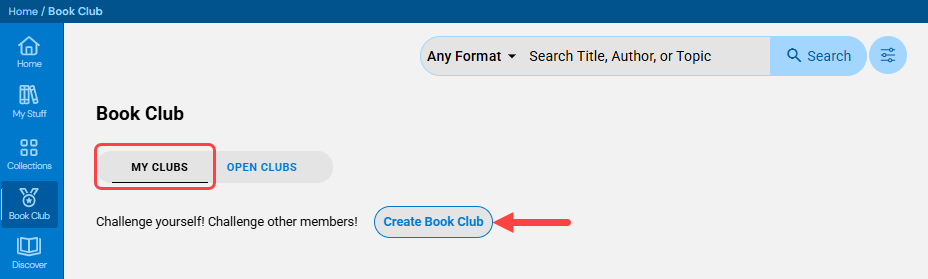
- From the sidebar, click Book Club.
- Select MY CLUBS > Create Book Club.
- In the Overview section, do the following:
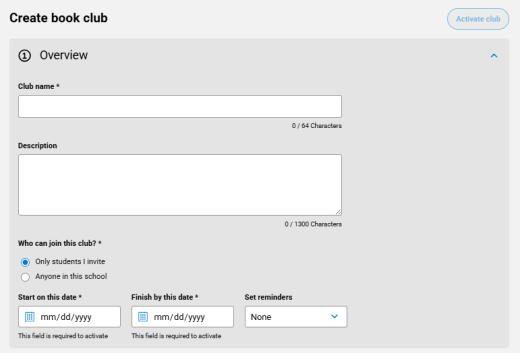
- Enter a club name and a description (optional).
- Under Who can join this club?, select one of the following:
- Only students I invite: Only students you assign are part of the club.
- Anyone in this school: Anyone at your school can join. You can also include participants you assign.
Note: Students assigned to a book club can not leave that book club.
- Enter start and finish dates.
- From the Set reminders drop-down, select a frequency.
- In the What? section, select titles and set club guidelines as follows:
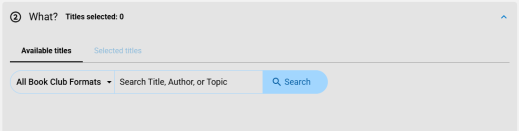
- Search for a title to add, and then click
 . Repeat this step for each title you want to add.
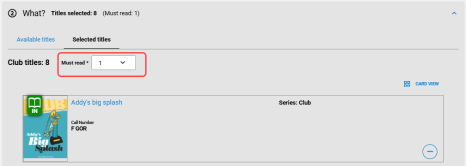
 - From the Selected titles tab, select how many titles participants must read to meet the club's guidelines. You'll be able to track their progress.
Notes:
- To remove a title, from the Available titles or Selected titles tab, click
 next to the title.
 - You can also add a title to a new or existing book club from the homepage, search results, or when viewing title information.
- To remove a title, from the Available titles or Selected titles tab, click
- Search for a title to add, and then click
- In the Who? section, do any of the following (optional):
If you want to add students...
Then... Individually - From the drop-down, select Student name.
- Type a student's name in the search field, and then click Invite. Repeat this step for each student.
By grade level - From the drop-down, select Grade level.
Note: This option might be unavailable if grade levels have not been set up in Destiny.
- From the Select grade level drop-down, choose the desired grade. A list of students appears.
- Do either of the following:
- To invite all students in the grade, click Invite all.
- To invite a specific student(s) in the grade, next to the desired name, click Invite. Repeat this step for each student.
By homeroom
- From the drop-down, select Homeroom.
Note: This option might be unavailable if homerooms have not been set up in Destiny.
- From the Select homeroom drop-down, choose the desired homeroom. A list of students appears.
- Do either of the following:
- To invite all students in the homeroom, click Invite all.
- To invite a specific student(s) in the homeroom, next to the desired name, click Invite. Repeat this step for each student.
Note: You can see a list of club members on the Selected tab. To remove all members, click Remove all. Or, to remove an individual member, click Remove next to their name.
- Do one of the following:
- To save the club as a draft, click Save draft.
- To make the club active, click Activate club.
Notes:
- You can save a book club as a draft without completing all required information.
- Access active, draft, and closed (completed) programs by going to Book Club > MY CLUBS.
Edit, duplicate, or delete a book club
- From the sidebar, click Book Club.
- From the MY CLUBS tab, select the club you want to work with.
- Do one of the following:
If you want to...
Then... Edit the club - From the Actions menu on the right side of the page, click Edit.
- Make any changes.
- Click Save.
Note: Participants will be notified of any changes to the name, book list, or dates.
Duplicate the club - From the Actions menu on the right side of the page, click Duplicate. A copy of the book club is created with identical settings.
- Make any changes.
Note: You cannot have two clubs with the same name.
- Click Save.
Note: Once you save a duplicated club, it is activated and appears as either an active or upcoming club, depending on the start date.
Delete the club
- Click Delete. A pop-up appears.
- Click OK to confirm.