Create a Destiny Engage book club – for students
Destiny Engage book clubs turn reading into a social activity, where students encourage each other to meet reading goals. You can also set one up to track a personal reading goal.
|
Notes:
|
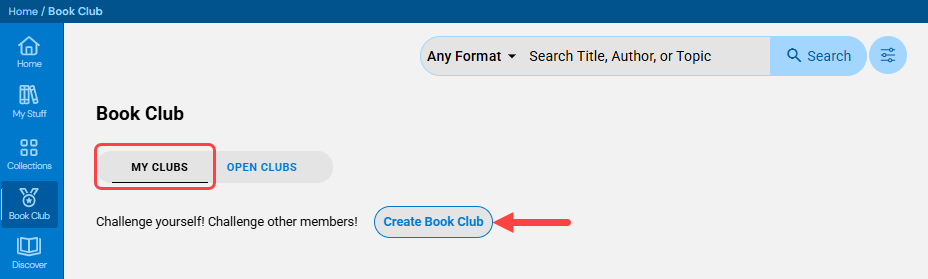
- From the sidebar, click Book Club.
- Select My CLUBS > Create Book Club.
- In the Overview section:
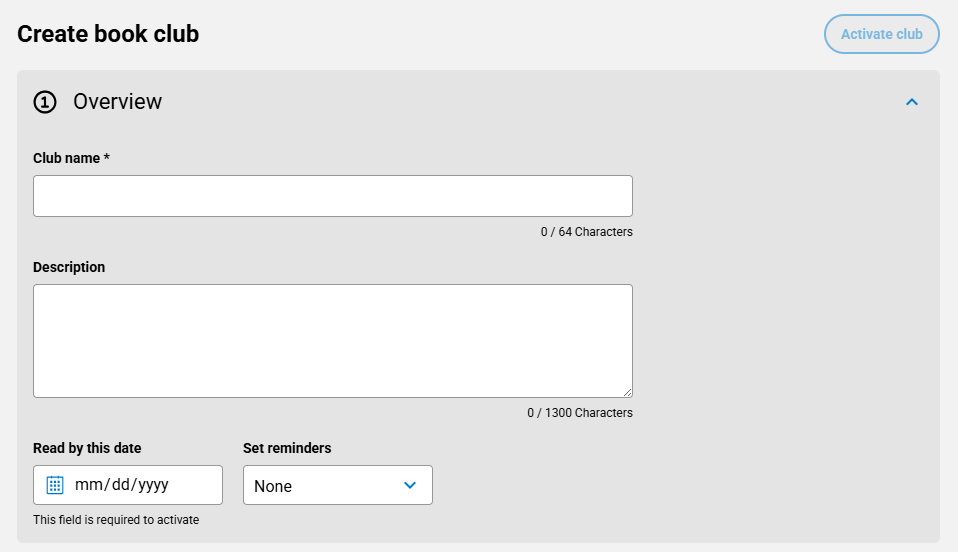
- Enter a club name and a description (optional).
- Enter a Read by date.
- From the Set reminders drop-down, select a frequency.
- In the What? section, search for a title to add, and then click
 . Repeat this step for each title you want to add.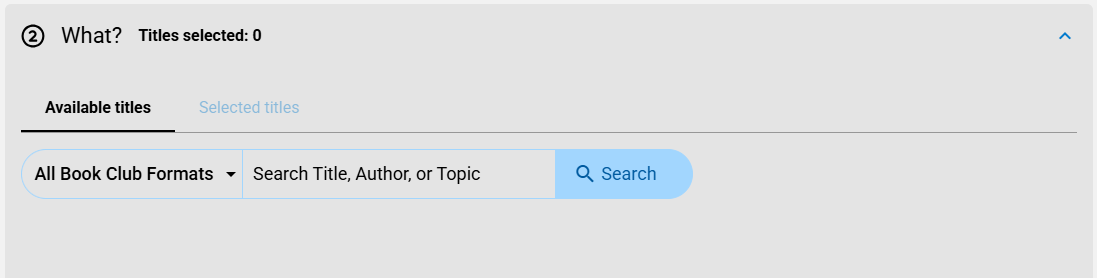
Notes:
- To remove a title, from the Available titles or Selected titles tab, click
 next to the title.
 You can also add a title to a new or existing book club from the homepage, search results, or when viewing title information.
- To remove a title, from the Available titles or Selected titles tab, click
- If you want to invite friends, in the Who? section, do any of the following:
- Search for a friend's name, and then click Invite. Repeat this step for each friend you want to add.
- From the Selected tab, see a list of club members. To remove one, click Remove.
Note: Friends you invite will see a notification in the Destiny Discover header.
- Do one of the following:
- To save the club as a draft, click Save draft.
- To make the club active, click Activate club.
Notes:
- You can save a book club as a draft without completing all required information.
- Access active, draft, and closed (completed) clubs by going to Book Club > MY CLUBS.
Edit a book club
- From the sidebar, click Book Club.
- From the MY CLUBS tab, click the club you want to edit.
- From the Actions menu on the right side of the page, click Edit club.
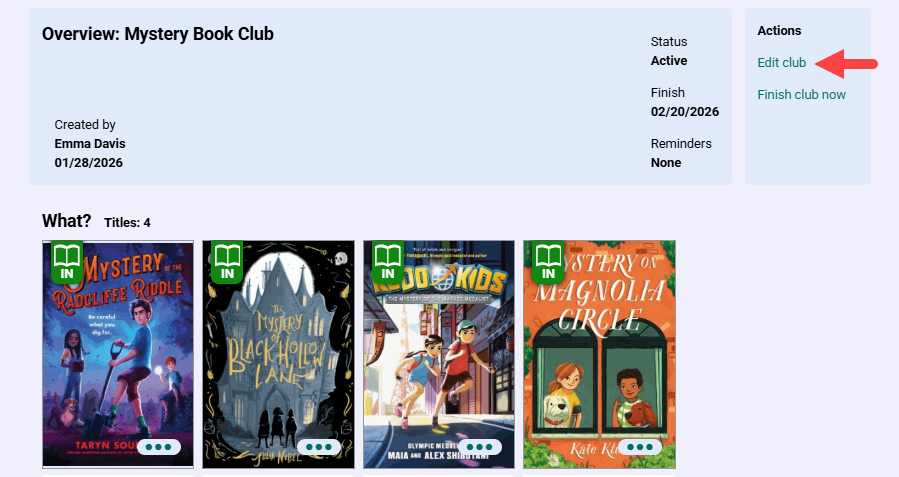
- Make any changes, and then click Save.
Note: Participants are notified of any changes to the name, date, or book list.
Join a book club
To learn how to join a book club, see Participate in a book club.