Search for and filter library resources
With a single search, you can find print and digital resources in your library. Use an advanced search or filters to refine your results.
To perform a keyword search from the top of any page:
- Type a keyword (title, author, or topic) in the Search bar.

- To narrow your search to a specific format, such as eBooks, select it from the drop-down on the left.
- Press Enter or Return, or click
 .
To perform an advanced search from the top of any page:
|
Note: This feature appears only if Search Options is enabled in Custom Settings. |
- To the right of the Search bar, click
 (Search Options).
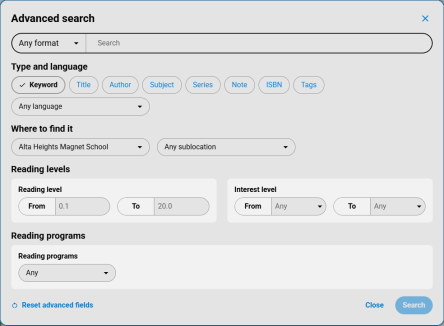
- Type a keyword in the Search bar, or leave it blank to use only the Advanced search options.
- Use the following table to determine your next steps:
Narrow your search by...
Then... Type and language Do any of the following:
- Select a type of search to perform (Keyword, Title, Author, Subject, Series, Note, ISBN, or Tags).
- From the Any language drop-down, select a language.
Where to find it Do any of the following:
- From the school drop-down, select a school, a group of schools (elementary, middle, or high), or your entire district.
- From the Any sublocation drop-down, select a sublocation.
Note: Sublocation is defined in a copy record and typically represents the genre or a physical location in the library where the book can be found.
Reading levels Do any of the following:
- Under Reading level, enter a range in the From and To fields.
- Under Interest level, select a grade range from the From and To drop-downs.
Reading programs From the Any drop-down, select a reading program, and then fill in the information.
- Click Search.
|
Notes:
|

You can expand or refine your search using the following tools:
| Search tool | Description | Example |
|---|---|---|
|
Quotation marks (") |
Use quotation marks around search terms to find an exact phrase. |
"Great Pyramid" (with quotation marks) returns results that include the exact phrase in the title record.
Great Pyramid (without quotation marks) returns results with the words "Great" and "Pyramid" anywhere in the title record, in no specific order and not necessarily together. |
|
Asterisk (*) |
Type an asterisk in the middle of or after a set of characters to let Destiny fill in the blank. |
hou* returns results such as house, Houdini, and Houston. |
|
Question mark (?) |
Use a question mark to replace a single character. |
ho?ereturns hole, home, hose, and Howe.
|
|
AND, OR, and NOT |
Use these Boolean operators between search words. Operators must be uppercase. The AND operator is always assumed if you include two or more words in your search. |
red blue is the same as red AND blue. |
What happens if I misspell a search term?
If a misspelled search term doesn't return any results, Destiny Discover automatically uses a corrected spelling. For example, if you search for dinosor, it corrects the search term to dinosaur and displays the message: We couldn't find "dinosor" in Books. Showing your results for "dinosaur" instead.

To filter search results:
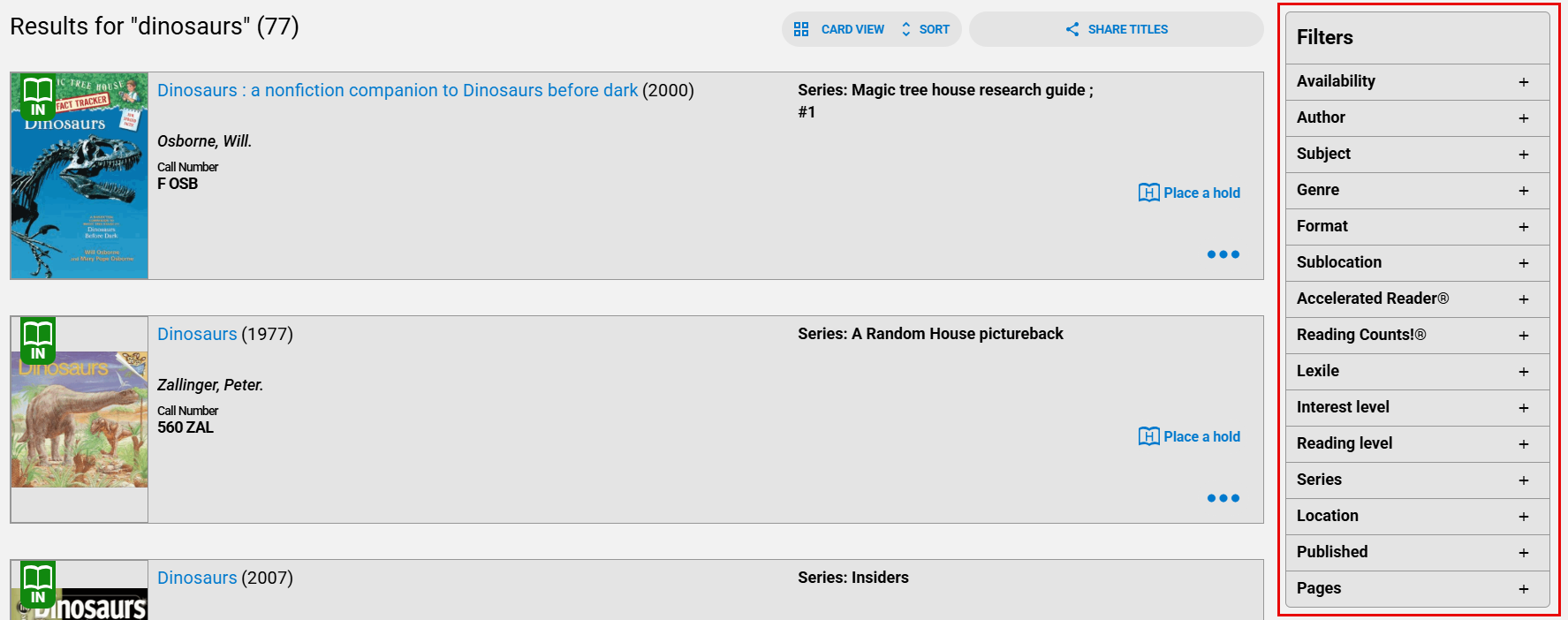
In the Filters panel on the right side of the page, you can narrow your search results using various filters.
|
Notes:
|
 next to a filter.