Set up the Topics carousel on the homepage
Patrons can use the Topics carousel to search based on topic, genre, or keywords (such as Graphic Novels, Sports Fiction, or Summer Fun). You can change the name of the carousel to be relevant to your school.
|
Note: The Topics category only appears if you enable it. |
You can do any combination of the following:
- Choose a preconfigured set of topics geared towards elementary or middle/high school students.
- Customize topics as follows:
- Create your own topic to search by a subject, sublocation, or keyword.
- Edit a preconfigured topic.
Note: Clicking an icon in the Topics category mostly returns print and eBook titles. The following search is performed, based on resource type:
- Books: An 'OR' search of subject keywords and sublocations.
- Websites, Databases, and Collections: A search based on topic name only.
To change the name of the Topics carousel:
- Go to Discover Admin.
- Select Display Options > Featured Content.
- In the Carousels section, click the name of the Topics carousel you want to change.
- Type a new name, and then click Ok.
- Click Save.
To use preconfigured topics:
- Go to Discover Admin.
- Select Display Options > Featured Content.
- On the Topics button, click
 .
. - Select one of the following groups of topics:
- Elementary Topics
- Middle/High School Topics
- Click Done.
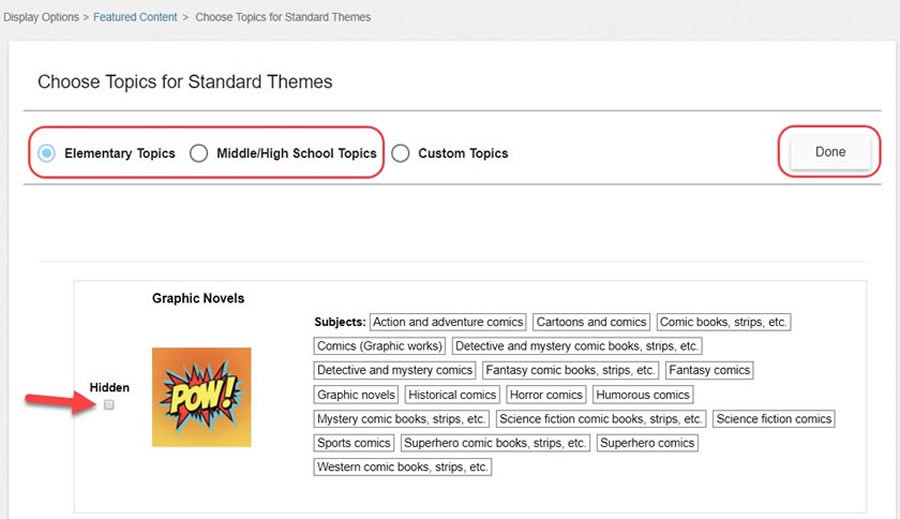
- If you want to hide a topic, next to the one you want to hide, select the Hidden checkbox.
To customize topics:
- Go to Discover Admin.
- Select Display Options > Featured Content.
- On the Topics button, click .
- Select Custom Topics.
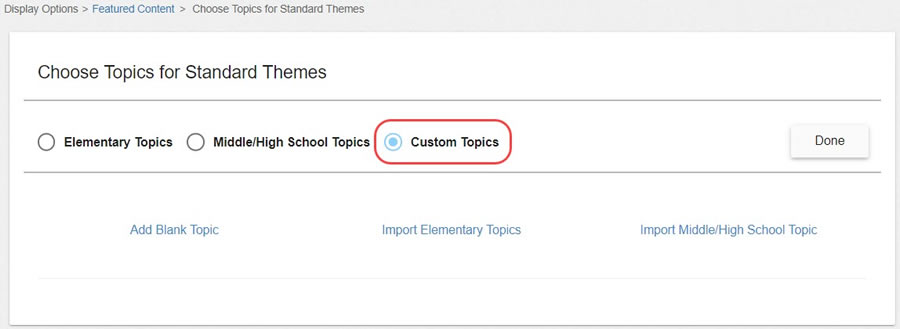
- To create a new topic:
- Click Add Blank Topic.
- In the Topic Name field, type the name you want to show in the Topics category.
- Click the No Image icon to select a stock icon or upload your own, and then click Accept.
- Do one of the following:
- To add a subject, from the Searches drop-down, select Subjects, type a name, and then click
 . You can add up to five.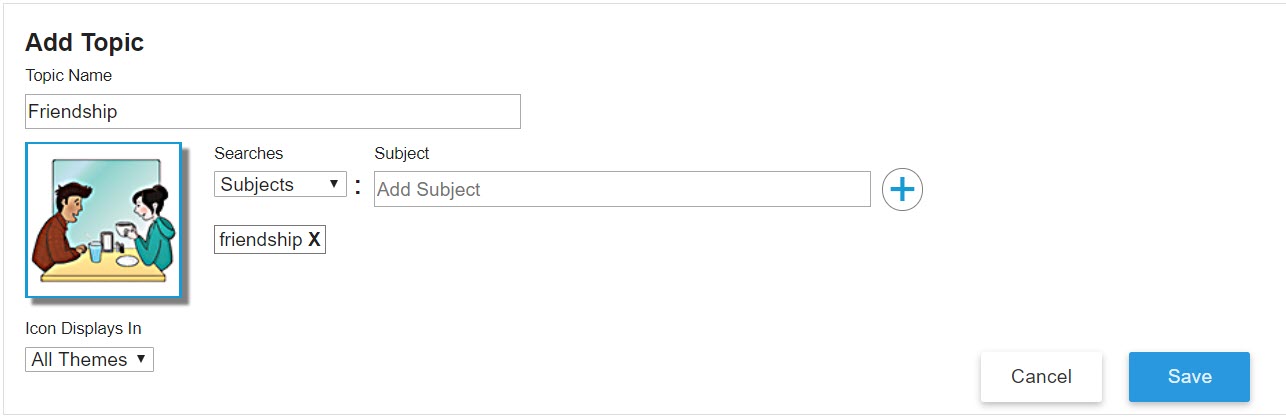
- To add a sublocation, from the Searches drop-down, select Sublocation, and then make your selection.
Note: Sublocation is a field in a book's copy record that is often used to organize a library by subject or genre. It might also be used to refer to an area in your library or building, such as a special shelving location, display cabinet, or classroom. For information on managing sublocations for your titles, see the Destiny Help Center.
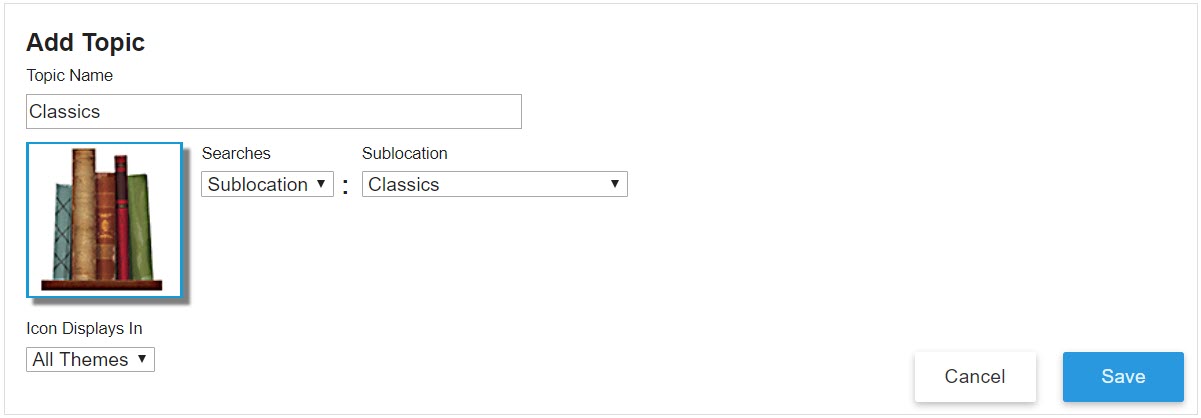
- To add a keyword search, from the Searches drop-down, select Keyword, and then type your keyword(s).
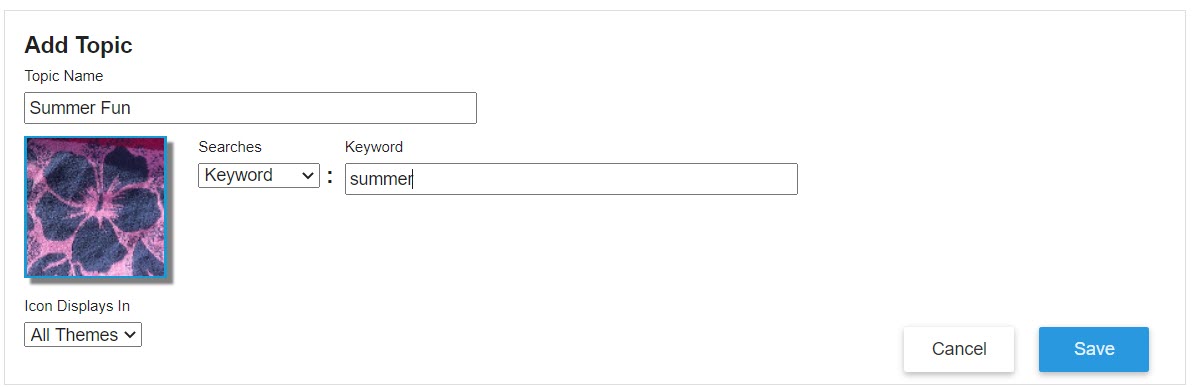
Note: You can use Boolean (AND, OR, NOT) searches.
- To add a subject, from the Searches drop-down, select Subjects, type a name, and then click
- Click Save.
Note: The Save button is not enabled until you add a Topic Name, image, and subjects, or sublocation search.
- To include any preconfigured topics:
- Select Import Elementary Topics or Import Middle/High School Topic.
- Select the checkboxes for the topics you want to include, and then click Import.
Notes:
- You can edit, duplicate, or delete any topic.
- When editing a topic, if it already has six or more subjects, you cannot add any more.
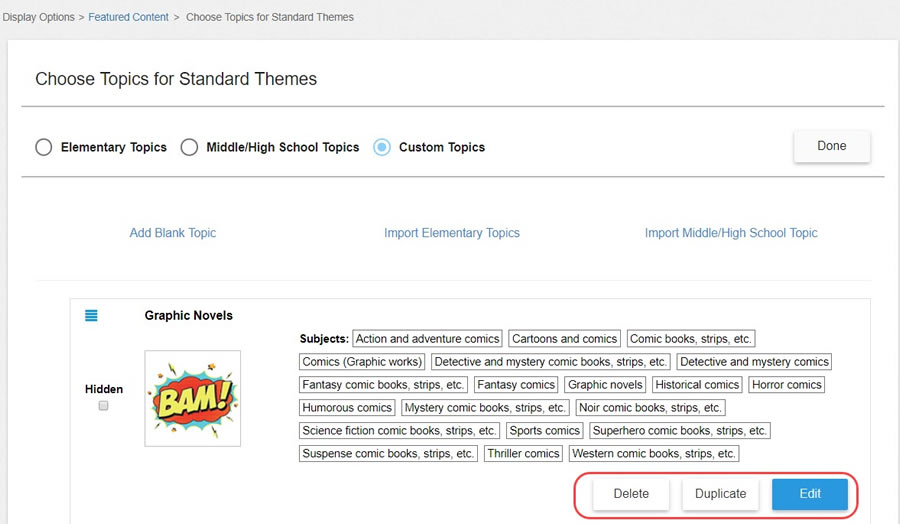
- To change the order of a topic, click the
 icon next to its name, and then drag it to another location.
 - Click Done.