Track Destiny Engage book club progress
Once you start a Destiny Engage book club, you can track students' progress and export the data to a CSV file.
|
Note: Your school must have a subscription to Destiny Engage. |
- Access the book club in one of the following ways:
- From your homepage: Go to the Book Clubs carousel, and then click the desired book club.
- From the sidebar: Select Book Club > My clubs, and then click the desired book club or View progress.
- Under Club performance, you can view the following data:
- Pages read: View the student average and club total for eBooks and print books.
- Reading time: View the student average and club total.
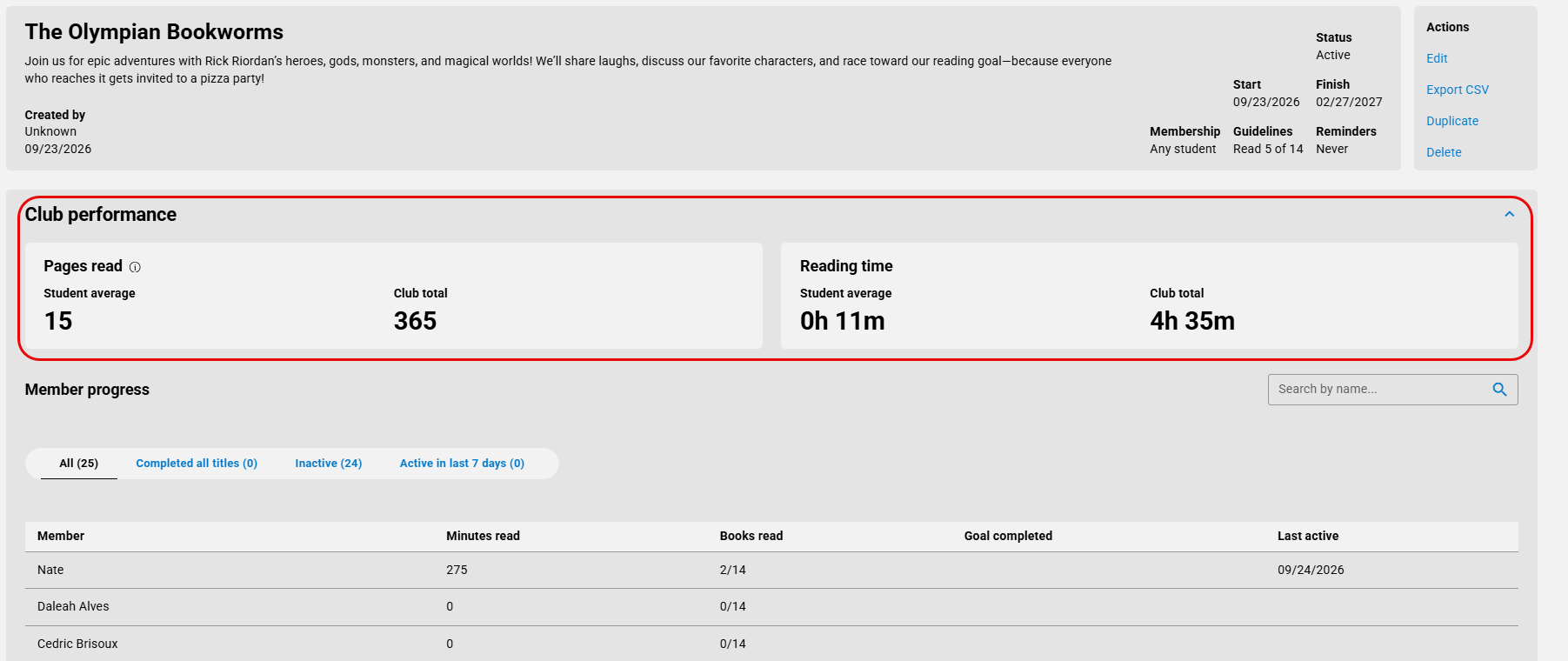
- Under Member progress, use the following table to determine your next steps:
If you want to view...
Then... All member progress
Click the All tab to view member names, minutes read, books read, goal completion status, and last active date.
Completed all titles Click the Completed all titles tab to view data for completed titles.
Inactive members
Click the Inactive tab to view data for inactive members.
Active in the last 7 days
Click the Active in last 7 days tab to view members' recent activity.
Note: To search for a specific member, type their name in the search bar, and then click
 or press Enter.
Export book club data
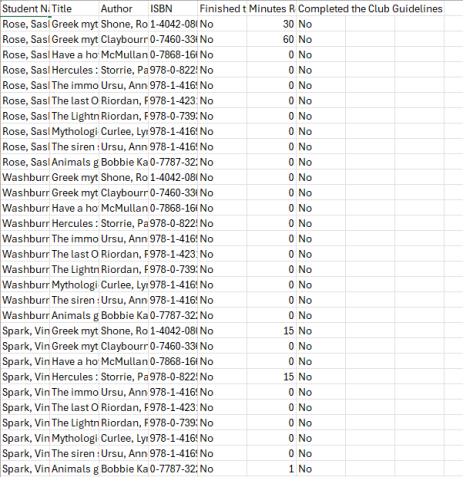
- If you want to export book club progress data, under Actions on the right side of the page, click Export CSV. The CSV file downloads to your browser's Downloads folder.
- Click the file to open it. Exported information includes Student Name, Title, Author, ISBN, whether the student finished the book, Minutes Read, and whether the student completed the club guidelines.
|
Notes:
|