Download an eBook to read offline from a browser
Once you check out and download an eBook, you can access it for offline reading anytime, anywhere.
|
Note: For convenient offline access, consider using the Destiny Discover app, which lets you search, check out, and access Follett eBooks and Audiobooks offline. |
To download your eBook:
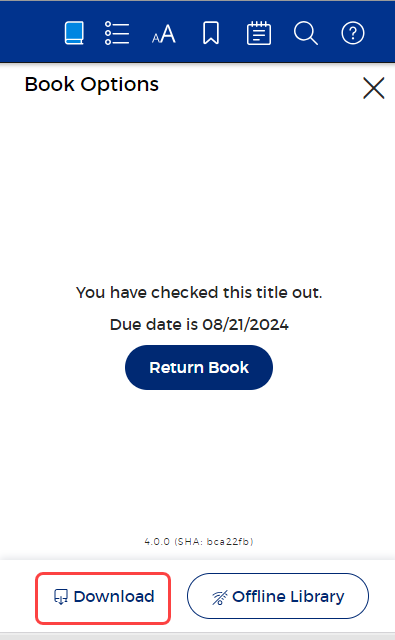
- From the eBook header of a checked-out eBook, select Book Options
 > Download.
 Note: If you don't see the icon, click
 .
.
- The eBook downloads to your web browser for offline access. A message appears when the book is downloaded successfully.
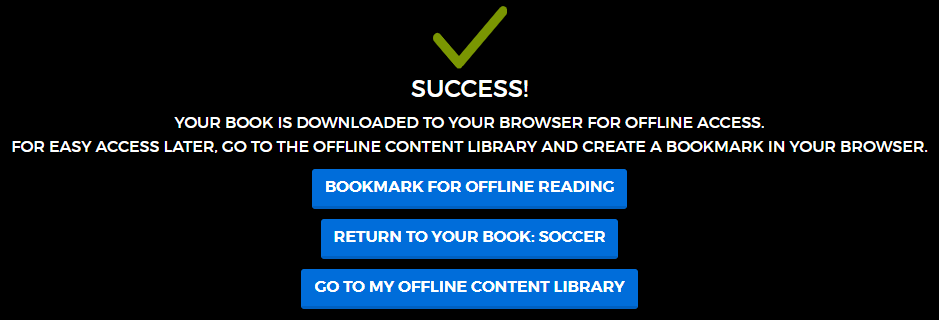
Notes:
- To download your eBook for offline access, you must allow pop-ups to display in your browser. If you have a pop-up blocker, you will need to manually enable pop-ups.
- With some browsers, you will be asked to confirm that the reader can store the eBook offline. You must allow this to save your eBook.
- To access an eBook offline, you need to create a bookmark in your browser to the Offline Content Library while you are still online. Your Offline Content Library contains all eBooks you currently have downloaded. To access it:
- Click Offline Library.
Note: You can also access the Offline Content Library from an open eBook (while online) by selecting
> Offline Library. - In the top-right, click
 to copy the URL of your Offline Content Library.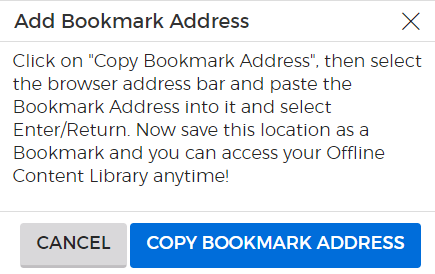
- Paste the URL to your browser's bookmark toolbar.
Note: The steps for adding a bookmark are different, depending on the web browser you are using. Once you bookmark the Offline Content Library page, every eBook you download will be accessible from there.
- Click Offline Library.
To access your downloaded eBook offline:
- Make sure that you do not have an internet connection.
- Open your web browser. In the browser's bookmarks toolbar, click the saved bookmark to your Offline Content Library. The Log In page appears.
-
In the USERNAME or LIBRARY ID field, enter your Destiny username.
- Click LOGIN. Your Offline Content Library opens.
- Do any of the following:
- To open an eBook, click its cover.
- To remove an eBook, click REMOVE.
- To remove all eBooks in your library, click REMOVE ALL EBOOKS.
Notes: